PinMy

Visual notes that make feedback obvious.

Six core actions every PinMy user learns in the first five minutes — and one that changes how the team closes the loop. No tutorials. No training videos longer than your coffee break.

Visual Note 01
File note

Upload your first file

Drop in an image or PDF, or capture a photo directly from the in-app PinMy camera — your file lands in "My Projects" and becomes a collaborative canvas you can share with your team in seconds. PinMy supports JPEG, PNG, BMP, WEBP, GIF, and PDF on every plan. Free includes up to 6 files (12 MB total storage, max 6 MB per file). Premium unlocks 3 GB of storage, single files up to 300 MB, and full video upload and annotation (MP4, MOV).

Once shared, anyone with access can drop pins on the exact spot of the plan, blueprint, or site photo and start a discussion thread anchored to that point. Share by email, give folder access, or send a team link — and with guest mode, your contractor or client can open the file in any browser without installing the app or creating an account. No more "check the floor plan I sent in the WhatsApp group last Tuesday" or "the crack is somewhere on the north wall." Point at it. Talk about it. Your whole team sees the same context you do.

Files our users upload daily: site progress photos, architectural floor plans (PDF), inspection reports, walkthrough videos (Premium), as-built drawings, snag report photos, and scanned blueprints. Every pin becomes part of a traceable, time-stamped record of the project — ready for handover, claims, or the next site walk.
Visual Note 02
Area note

Highlight the exact area

Draw a rectangle around the exact region you're flagging, then attach a voice note or a typed comment — the highlight and the comment are published together as a single pin. Your feedback stays anchored to the visual context, not lost in a 300-message WhatsApp thread.

This is the difference between "there's a crack somewhere on the north wall" and a precise rectangle around the crack with a voice note explaining what to do about it. Field teams call this the moment when "see attached" becomes "see exactly this." On bathroom tiles, a tight rectangle around a chipped corner. On a façade elevation, a larger frame around a damp patch. The size of your highlight tells the team how big the problem is — before they read a single word.

Once the pin is published, the highlight, the voice note, and every reply that follows become a permanent part of the project record — time-stamped, attributed, and ready for handover, defect lists, or claims six months later.

Looking for free-form sketching instead? PinMy also lets you draw directly on the file with selectable color, brush thickness, and an eraser — outside the pin workflow. Great for quick markup that doesn't need a discussion thread.

Visual Note 03
Refinement note

Resize the highlighted area

Adjust the highlighted rectangle to match the real scope of the issue. A small detail like a chipped tile needs a tight rectangle. A damp patch covering half a wall needs a larger one. The size of your highlight tells the team how big the problem is — before they read a single word.

To resize, press and hold the top-right corner of the rectangle for one to two seconds. When it turns orange, you're in edit mode — drag the corner to the new size without lifting your finger. Release, and the corner snaps back to blue. The same gesture works on your own pin marker if you need to reposition it: press, wait for orange, drag, release.

You can resize or reposition your own highlights as many times as needed — right after dropping the pin, or weeks later as the work on site evolves. Pin markers themselves stay at a fixed size for legibility on busy floor plans — what moves and resizes is the area around them, not the marker.

No guesswork. No "is this issue local or area-wide?" follow-up questions. This step takes two seconds and saves twenty minutes of clarification messages later.

Visual Note 04
Voice note

Record a voice comment

Speak your feedback in one tap when typing is too slow or your hands are dirty. Voice notes preserve tone, urgency, and intent in a way typed text rarely can — and on a busy site, they're often the difference between a comment that gets actioned and one that gets ignored.

PinMy supports up to 30 seconds of voice per comment on the Free plan and up to 180 seconds on Premium. Every voice note is automatically transcribed in over 20 languages — including Spanish, English, Italian, Portuguese, French, Ukrainian, German, and Japanese — so your team can read, search, or copy the text version later. The transcript appears next to the audio and can be edited manually if the system misheard a technical term, a product code, or a tricky surname.

Voice works at every stage of the pin's life: as the first input when you drop a pin, as a reply inside an existing pin, or as the assigned action item passed to a teammate. Every voice comment is time-stamped and tied to the exact spot on the plan — including who recorded it and when.

Why voice matters on a construction site: gloves, dust, weather, noise, low light. Typing on a phone with cold hands in February makes accurate written feedback impossible. Voice solves all of it — and unlike a WhatsApp voice message, it stays attached to the precise corner of the plan it's about, not buried in a group chat scroll.

Visual Note 05
Pin note

Move a pin

Drag the pin to the precise location so every comment stays anchored to the right visual point — the exact corner, joint, or feature you're talking about.

To reposition a pin, press and hold the pin marker for one to two seconds. When it turns orange, you're in edit mode — slide it to the new spot without lifting your finger, and release. The marker snaps back to blue at its new location. If the pin has a highlighted area attached, both the marker and the rectangle move together. The same long-press gesture works on the rectangle's top-right corner if you want to resize the highlighted area independently.

You can move your own pins as many times as you need — right after dropping the first comment, or months later if the work on site shifts and the reference point needs to follow. Only the person who created a pin can move it. Other team members can open it, read its history, reply with their own comments, and delete the comments they wrote themselves — but they cannot move or delete your pin. That's what keeps the project record honest in disputes.

Pin position is what makes PinMy traceable in disputes. Months later, "I told you about this defect on March 14th" is no longer your word against the contractor's — it's a time-stamped pin with a voice note attached to the exact corner of the bathroom tile in question.

Visual Note 06
Workflow note

Assign, resolve, and close defects on the spot

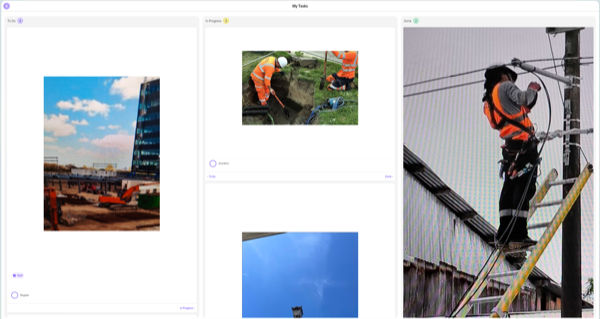
Screenshot of the PinMy Kanban board tracking defects across To Do, In Progress, and Done

PinMy isn't just about leaving feedback — it's about closing the loop on what gets fixed, who fixes it, and when.

Inside any pin, you or anyone with access can assign a comment — text, voice, photo, video, or PDF — to yourself or to a teammate. Use @-mentions to tag one or more people directly in a comment; everyone you mention gets a notification, by push or by email depending on their settings. The same applies to every new pin and every reply: people with access stay in the loop without anyone re-typing the same update into WhatsApp.

When a comment is assigned, it lands automatically on the assignee's Kanban board under TO DO. When they move the card to DONE, the comment is marked resolved on the plan and shown with a soft blur — the record stays visible, but the team can see at a glance the issue is handled. You can also resolve a single comment manually, or resolve the entire pin (which dims the pin marker on the file to show this point is closed).

Three things this replaces on a typical site:

• Spreadsheets and PDF punch lists re-typed every Friday

• "Did anyone fix the bathroom tile from last week?" messages in five different group chats

• Defect logs and post-handover claims rebuilt from memory six months after the work was done

Notifications are fully configurable in settings — push only, email only, both, or off. Whichever channel you choose, the project record on the plan stays the same: every assignment, every resolution, every reopened item is time-stamped and tied to the exact spot it happened.

What you can do once you've mastered these six actions.

These six actions are the foundation. Once your team uses them daily, PinMy becomes the system of record for everything that happens on site — punch lists, snag reports, defects, quality controls, post-handover claims, install verifications, and the day-to-day decisions that used to live in WhatsApp.

Pins capture what happened. Voice notes carry the context. Highlights show the scope. Assignments turn comments into tracked tasks. The Kanban board shows what's open, what's in progress, and what's closed — without anyone re-typing the same status into a spreadsheet.

You stop sending screenshots through WhatsApp. You stop writing site reports from memory in the evening. You stop arguing with contractors about who reported what when. You stop chasing status updates in five different group chats.

Your project is documented as you work, not after — and every fix, every reopened item, every disputed defect leaves a time-stamped trail you can hand over, audit, or defend.

Frequently asked questions

Does PinMy work offline?

+

Not yet — PinMy currently requires an internet connection to create pins, leave voice notes, upload media, and sync with your team. Offline mode is on our roadmap, with smart caching of recent project files at the top of the priority list.

If you regularly work in deep basements, tunnels, remote construction sites, or anywhere with weak coverage, we'd like to hear about your specific workflow — we prioritise the roadmap based on real customer use cases. For now, most field teams find that a brief pause to capture pins where signal is available works better than waiting until the office to write a site report from memory.

What file types can I upload to PinMy?

+

PinMy supports JPEG, PNG, BMP, WEBP, GIF, and PDF on every plan, including the Free tier. Premium users can also upload MP4 and MOV video files (up to 300 MB per file) and add pins to specific frames or moments inside the video. Free users can view, annotate, and comment on videos that Premium users share with them, but cannot upload videos themselves. Other document types — DWG, RVT, IFC, DOCX — can be exported as PDF or image first, then uploaded.

Can my contractor or client use PinMy without an account?

+

Yes — PinMy Guest Mode lets anyone open a shared file in any browser, on phone or PC, without installing the app or creating an account. Guests can see all pins, voice notes, photos, and comments on shared images, videos, or PDF documents. To leave their own pin or reply to an existing one, guests enter a single mandatory field — their name (email is optional). If a guest clears their browser or opens the link on a different device, they'll need to enter their name again.

For ongoing collaboration with the same team, a free PinMy account is the better fit — it keeps identity persistent, unlocks notifications, and lets the person own their own projects, not just contribute to yours.

How long can voice notes be? Are they transcribed?

+

Voice notes are up to 30 seconds per comment on the Free plan and up to 180 seconds on Premium. Every voice note is automatically transcribed into searchable text in over 20 languages — including Spanish, English, Italian, Portuguese, French, Ukrainian, German, and Japanese. Your team can read, search, or copy the text version later without replaying the audio. The transcript appears next to the audio and can be edited manually if a technical term, product code, or surname was misheard.

Can I tag teammates in a comment?

+

Yes. Use @mentions to tag one or more teammates inside any comment — typed or voice. Everyone you mention gets a notification, by push or email, depending on their preferences. Mentioned people can reply, assign the comment to themselves or someone else, or mark it as resolved. The record of every mention, reply, and resolution stays attached to the pin and the exact spot on the plan.

Who can edit, move, or delete a pin?

+

Only the person who created a pin can move it, resize its highlighted area, or delete it. Other team members with access can open the pin, read its full history, reply with their own comments, and delete the comments they wrote themselves — but they cannot move or delete the pin itself. This is what makes PinMy a traceable record in disputes: nobody can quietly remove a defect someone else flagged six months ago.

How do notifications work?

+

When anyone adds a new pin, replies inside an existing pin, assigns a comment, or @mentions a teammate, the relevant people get notified — by push notification inside the mobile or web app, by email, or both. Each user controls their own notification preferences in settings: push only, email only, both channels, or off entirely.

Can I assign tasks to teammates and track who fixes what?

+

Yes. Any comment inside a pin — text, voice, photo, video, or PDF — can be assigned to yourself or to a teammate. Assigned comments land automatically on the assignee's Kanban board under TO DO. When the work is done, moving the card to DONE marks the comment as resolved on the plan. You can also resolve a single comment manually, or resolve an entire pin (which dims the pin marker on the file to show the team this point is closed). It's a punch-list workflow built into the plan itself — no separate spreadsheet, no parallel WhatsApp thread.

Does PinMy support BIM models, IFC, or 3D files?

+

Today, PinMy works with 2D — PDF floor plans, blueprints, photos, and videos. Native 3D BIM and IFC viewer support is in active development. If your workflow depends on 3D model viewing on site, get in touch — we'd like to learn about your use case and how early access might fit your team.

What does PinMy cost?

+

PinMy Free is free forever — no credit card required, no trial expiry. It includes up to 6 files, 12 MB total storage, voice notes up to 30 seconds, and full collaboration with teammates and guests. Premium is €8.99 per month (or two months free on the annual plan) and adds video upload and annotation, 3 GB storage, files up to 300 MB, OCR, and 180 seconds of voice. Teams pricing is custom — built around the number of seats, storage, integrations, and security needs of your organisation.

Which devices does PinMy run on?

+

PinMy runs on iPhone and iPad (iOS), Android phones and tablets, any modern web browser on desktop or laptop, and through the PinMy Chrome extension for one-click screenshot pinning. The mobile and web apps share the same account and project data — start a pin on your phone in the morning, finish the report on your laptop in the afternoon.

Does PinMy replace platforms like PlanRadar or BIM 360?

+

No. PinMy is a mobile-first authoring tool for what happens on site — the moment a field worker speaks, photographs, or draws a problem. It sits alongside larger CDE platforms and feeds them with structured field data. If your company already uses PlanRadar, BIM 360, Procore, or Autodesk Construction Cloud, PinMy makes the field-capture stage faster and more accurate before that data flows into your main platform. For small and mid-size teams without an enterprise CDE, PinMy is often the only tool they need.